For most UNISA students, your Year Mark is calculated based on these assignments. If you fail to submit a compulsory assignment, you may receive a 0% year mark or be barred from writing the examination entirely. The 2026 academic year uses the myUnisa portal as the primary submission gateway, and while some modules allow resubmissions, the final deadline is absolute.
Quick Checklist: Before You Hit Submit
- File Format: PDF is the gold standard. While Word is accepted for some, PDF ensures your formatting (and math/science symbols) remains intact.
- File Size: Keep your files under 5MB to avoid upload timeouts.
- Student Number: Ensure your student number is on the cover page of your document.
- Reference Number: Double-check that you are uploading to the correct assignment number (e.g., Assignment 01 vs. Assignment 02).
🚀 Student Desk Expert Insight: The MCQ vs. File Protocol
There are two distinct ways to submit on myUnisa depending on the assignment type:
[Image showing the “Assignments” tab on the myUnisa dashboard with two arrows: one pointing to “Online MCQ” and another to “File Upload”]
- Written/File Assignments: You prepare a document on your computer and “Browse” to upload it. Always verify the file name before clicking “Continue.”
- Multiple Choice (MCQ): These are often “Live” submissions. You will enter the total number of questions, and a grid will appear for you to select options (1, 2, 3, etc.). Crucial: You must click “Continue” twice—once to save and once to finalize. If you don’t reach the “Submission Report” screen, your answers are not saved.
- The “Absence from Exam” Rule: If you miss a compulsory assignment, your final status for that module will be “Absent from Examination,” regardless of how well you studied.
Discover New Internships and Learnership Programs Below
- Apprenticeships
- Blog
- Bursaries
- Government Vacancies
- Internships SA
- Learnerships
- Uncategorized
- Yes Programme
Step-by-Step: Submission on myUnisa
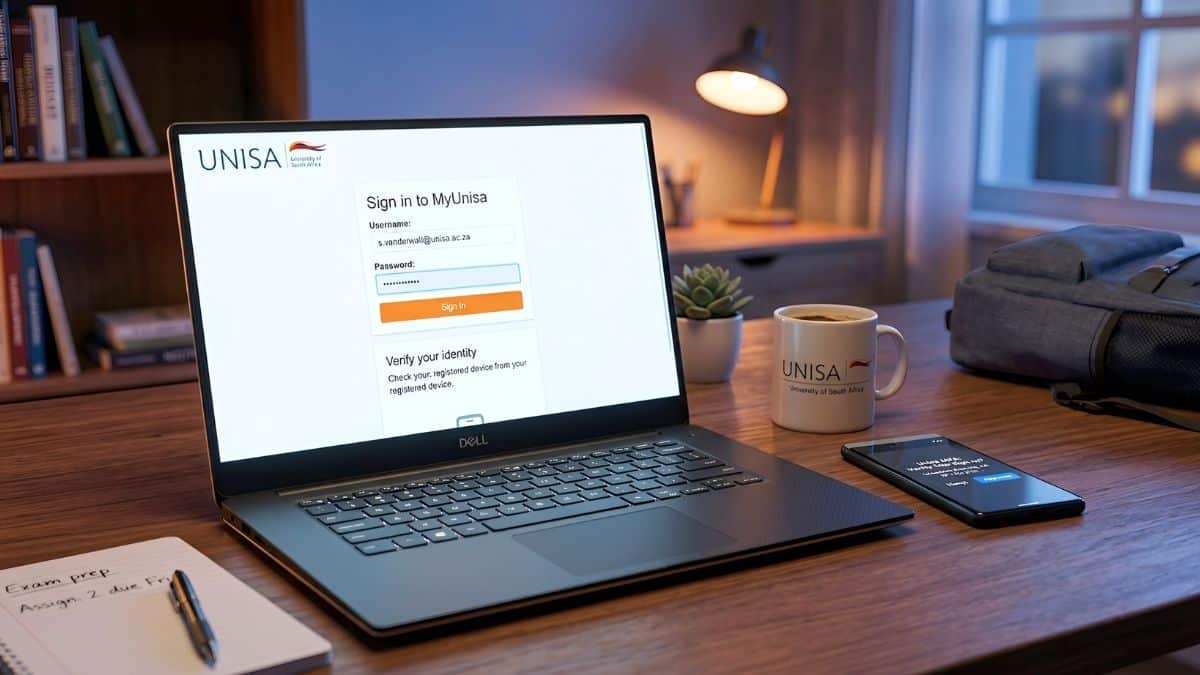
- Login: Go to my.unisa.ac.za and enter your student number and password.
- Navigate: Click on the “myAdmin” tab, then select “Assessment Admin” followed by “Assignments”.
- Find Module: Locate the correct course code (e.g., PYC1501) and the corresponding assignment number.
- Action: Click the “Submit” link in the Action column.
- Upload:
- Click “Browse” to find your file.
- Select the file format (PDF is recommended).
- Click “Continue”.
- Verify & Finalize: Review the file details on the next screen. Click “Continue” again to submit.
- Receipt: Wait for the Submission Report. This is your legal proof that UNISA received your work.
[STRATEGY] The “Last-Minute” Safety Net
UNISA systems often experience high traffic on deadline days (especially in 2026). Use this strategy to stay safe:
- The 48-Hour Rule: Aim to submit at least 48 hours before the deadline. If the site crashes, you still have time for the system to stabilize.
- Extension Requests: If you are ill or have a death in the family, email assign@unisa.ac.za before the deadline with your medical certificate or affidavit. Extensions are rarely granted after the due date has passed.
- Confirmation Receipt: Always take a screenshot or download the Submission Receipt. If your assignment goes “missing” in the system, this receipt is the only way to get your marks reinstated.
Common 2026 Submission Errors
| Error | Consequence | Fix |
| Wrong Assignment No. | 0% Mark | You usually cannot change this after the deadline. |
| Incorrect File Type | File corrupted / Not marked | Always convert .docx to .pdf before uploading. |
| Timed Out | Submission failed | Refresh and try again; keep file size under 5MB. |
| Unconfirmed Submission | Assignment not received | You must see the “Submission Report” screen. |
How to Check Your Results
Once marked, your results will appear under the same “Assignments” tool in myAdmin. You can also download the Annotated/Feedback File from your module site (myModules) to see specific comments from your lecturer.
Final Thought: Your assignments are the foundation of your degree. Treat every submission receipt like a piece of gold—save it in a dedicated “UNISA 2026” folder on your Google Drive immediately!